
Installing FormLayer
Installing FormLayer is a straightforward process, identical to installing any other WordPress plugin. Whether you are using the free version from the WordPress repository or the Pro version, the process takes less than a minute.
Installing the Free Version
You can install FormLayer Free directly from your WordPress dashboard:
- Log in to your WordPress admin dashboard.
- Navigate to Plugins → Add New.
- In the search bar, type "FormLayer".
- Click Install Now next to the FormLayer plugin.
- Once installed, click Activate Plugin.
Installing FormLayer Pro
If you have purchased FormLayer Pro, follow these steps:
- Download the
formlayer-pro.zipfile from your account dashboard. - Log in to your WordPress dashboard.
- Navigate to Plugins → Add New.
- Click the Upload Plugin button at the top.
- Click Choose File and select the downloaded
.zipfile. - Click Install Now and then Activate Plugin.
System Requirements
- WordPress 7.0 or higher (tested up to 6.9)
- PHP 7.4+ recommended
- Modern browser with JavaScript enabled
Next Steps
After activation, you will see a FormLayer menu item in your WordPress admin sidebar. Click it to open the dashboard and start building forms.
Creating Your First Form
FormLayer makes it easy to create beautiful, functional forms in minutes. Here is a step-by-step guide.
Step 1: Open the Form Builder
- Go to FormLayer in your WordPress admin menu.
- Click the Add New Form button on the Forms tab.
- You will be taken to the Template Selection screen.
Step 2: Choose a Template or Start from Scratch
FormLayer offers several pre-built templates to get you started:
- Direct Contact Hub - A standard contact form with name, email, subject, and message.
- Growth Lead Capturer - Optimized for B2B lead generation.
- Service Request Desk - For technical support tickets.
- Product Insight Survey - For collecting user feedback with ratings.
Click Start from Scratch if you prefer to build a form from a blank canvas.
Step 3: Add Fields via Drag & Drop
Once inside the builder:
- The left sidebar lists all available fields, grouped by category.
- Click any field to add it to your form.
- Drag fields to reorder them within the form.
- Each field has its own settings panel where you can customize labels, placeholders, validation, and more.
Step 4: Configure Field Settings
Click on any field in the builder to open its settings. You can configure:
- Label - The field label shown to users.
- Placeholder - Hint text inside the input.
- Required - Toggle whether the field is mandatory.
- Label Placement - Top, left, right, or hidden.
- Default Value - Pre-fill the field.
- Help Text - Additional instructions below the field.
Step 5: Configure Form Settings
Click the Settings tab in the builder to configure:
- Notifications - Email settings for form submissions.
- Confirmations - The message shown after successful submission.
- Custom CSS - Add your own styles to the form.
Step 6: Publish Your Form
Click Save Form to save your work. Once saved, a shortcode will be generated (e.g., [formlayer id="1"]). Copy this shortcode and paste it into any WordPress page, post, or widget to display your form.
Form Settings Overview
Form settings allow you to control how your form behaves, what happens after submission, and how notifications are sent.
Accessing Form Settings
While editing a form in the Form Builder, click the Settings tab at the top of the builder panel. Here you will find the following sections:
Notifications
Control email notifications sent when a form is submitted:
- Enable Notifications - Toggle email notifications on/off.
- To Email - Recipient email address. Supports merge tags like
{admin_email}. - From Name - The sender name shown in the email.
- From Email - The sender email address.
- Reply-To - Optional reply-to address.
- BCC - Blind carbon copy recipient.
- Subject - Email subject line.
- Message - Email body content. Use
{all_fields}to include all form data, or individual merge tags like{field_name}.
Confirmations
Configure what happens after a successful submission:
- Confirmation Message - The text shown to users after they submit the form. Default: "Thank you! Your form has been submitted successfully."
Custom CSS
Add custom CSS to style your form. This CSS is applied only to this specific form and is automatically enqueued when the form is rendered.
Available Merge Tags
The following merge tags can be used in notification fields:
| Tag | Description |
|---|---|
{all_fields} | All form field values |
{admin_email} | WordPress admin email |
{form_title} | The form name |
{site_title} | Your site title |
{site_url} | Your site URL |
{field_xyz} | Value of a specific field (use the field name) |
How to Buy FormLayer Pro
In this guide we will help you buy FormLayer Pro. FormLayer can be bought through Softaculous for that you need to login to Softaculous Client area.
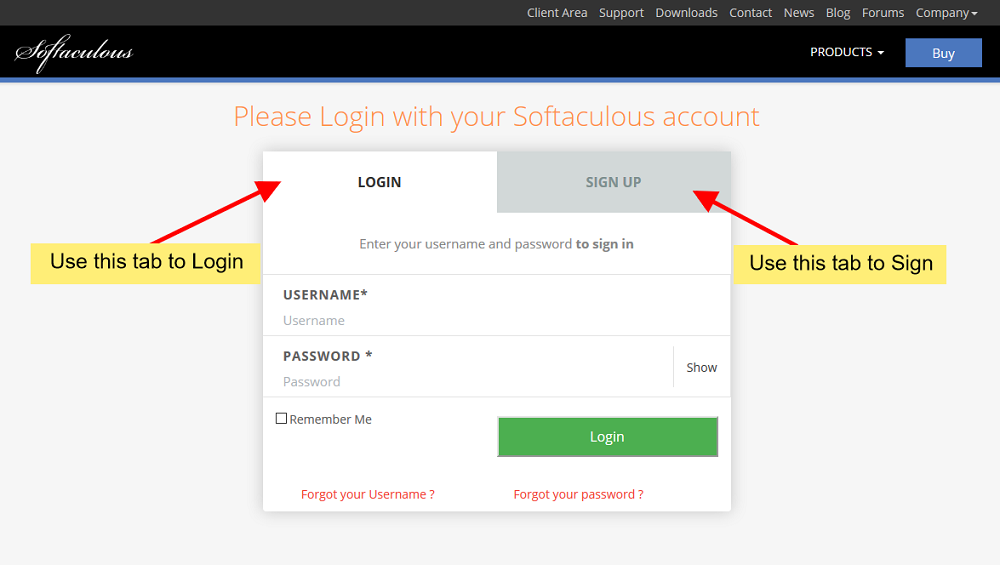
Login To Your Softaculous Account
You will need a Softaculous account to purchase the license.
- If you do not have a Softaculous account create one by clicking on the Sign Up tab on the client center login page
- If you already have a Softaculous account simply login to the client center.
Place Order
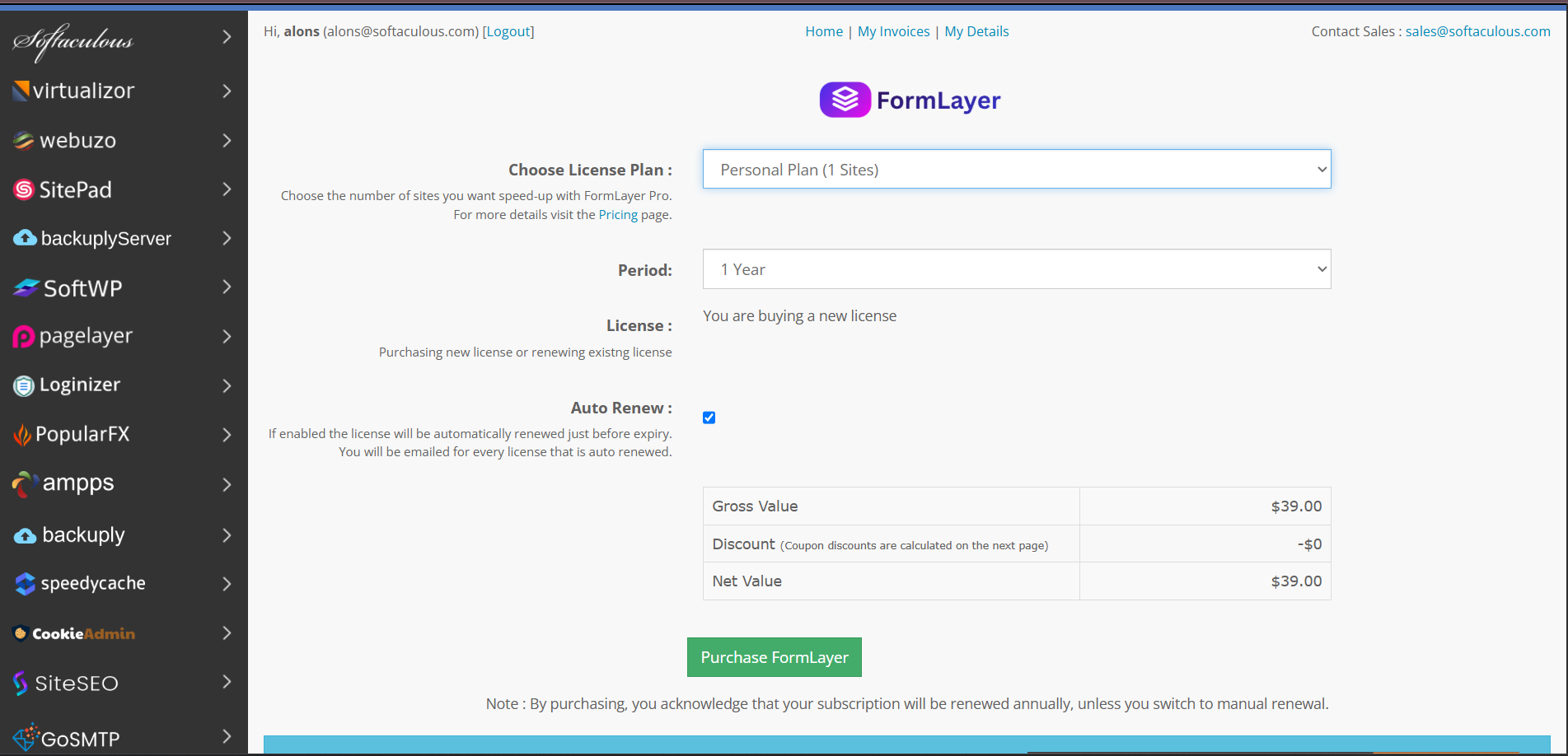
Once you have logged in, from the left menu click on FormLayer -> Purchase FormLayer
- Choose License Plan: We have various plans to suite your needs. You can have a look at our plans on our pricing page
- Click on the Purchase FormLayer button at the Bottom of the Form.
If you face any issue do let us know and we will help you out, you can contact out support team at [email protected]
How to Install FormLayer Pro
- This guide shows you how to install Pro version of FormLayer.
- Here we are assuming that you already have bought FormLayer Pro and have a license key with you. If you haven't done that, please check the guide for How to buy FormLayer Pro.
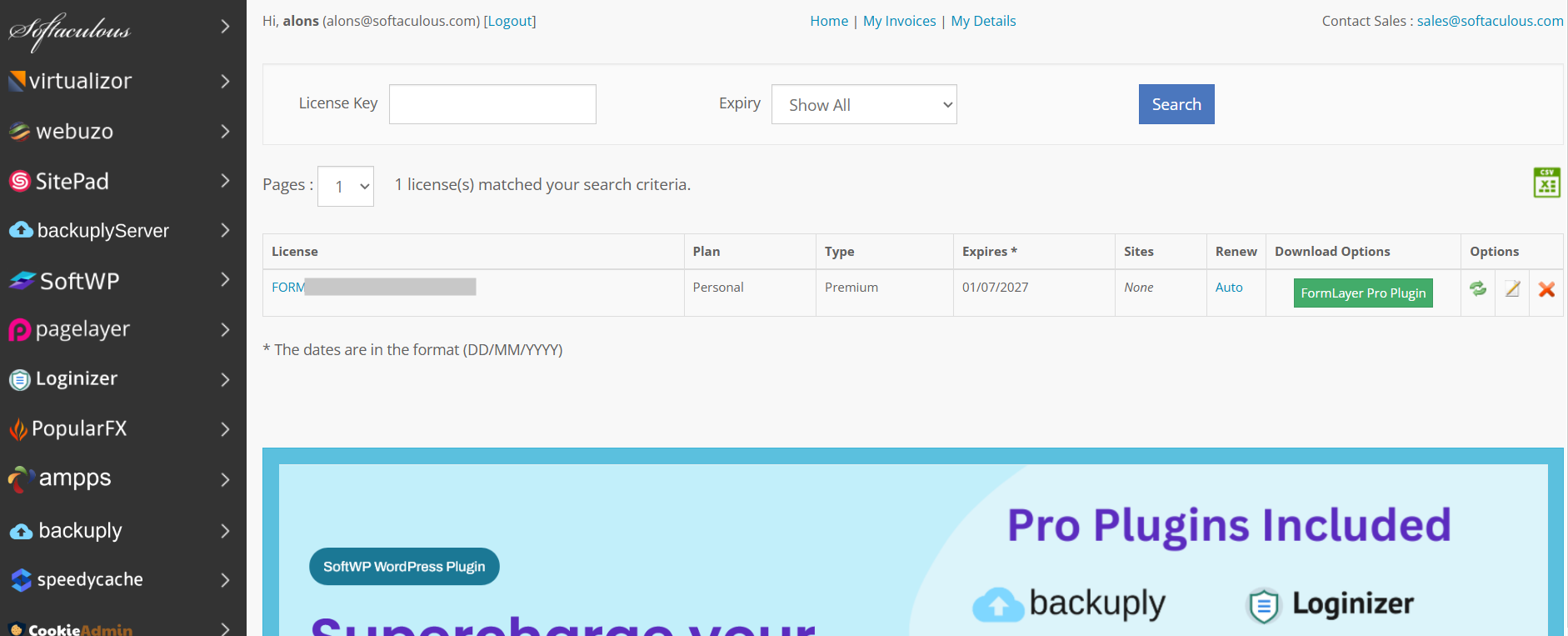
- The FormLayer Pro Plugin is available for download from the Client area after you have purchased your license.
- The following is a screenshot of the Client area showing the download link:
- After downloading the plugin zip file, go to WordPress admin → Plugins → Add New Plugin → Upload Plugin.
- An upload field will appear. Select the plugin file and click Install Now.

- Now after install completes, you need to activate the plugin, and that's it installation process has completed, now we just need to link the license with the plugin.

Linking License with the Plugin
- After installation, you just need to link the license with the Plugin and then you will be able to get updates.
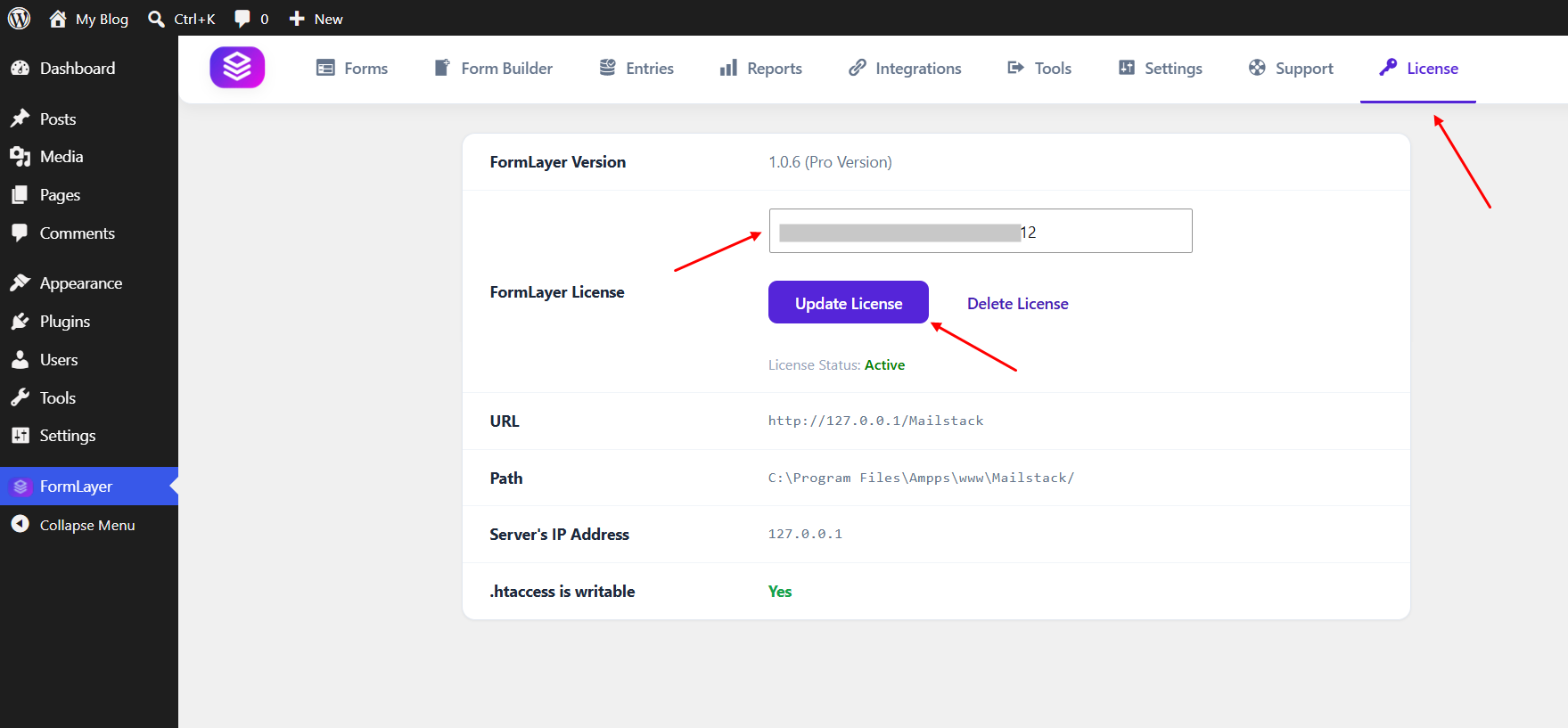
- In your WordPress admin, go to FormLayer → License Page.
- On license Page, place your key in the license field, and click on Update License settings.
- After save settings will save the key, click on Activate to activate the key, and that's all.
If you face any issue in any step, you can reach out to our support team, they will help you out, you can contact us at [email protected]
Standard Fields Guide
FormLayer Free comes with 15+ standard field types to build any form you need.
General Fields
| Field | Description | Settings |
|---|---|---|
| Name Fields | First, Middle, and Last name inputs. You can enable/disable each sub-field individually. | Placeholder, label per sub-field, required |
| Email address input with built-in validation. | Placeholder, default value, required | |
| Simple Text | Single-line text input. | Placeholder, default value, required |
| Mask Input | Text input with a mask pattern (e.g., phone numbers). Default mask: (+1) 000-0000. |
Placeholder, mask pattern |
| Text Area | Multi-line text input with configurable rows and columns. | Placeholder, rows, cols, required |
| Country List | Dropdown with all world countries, with country flag icon. | Placeholder, default value |
| Numeric Field | Number input with min/max validation and digit limit. | Placeholder, min, max, digit limit, required |
| Dropdown | Select dropdown with customizable options. | Options list, placeholder, default value |
| Radio Field | Radio button group for single selection. | Options list, default value |
| Checkbox | Checkbox group for multiple selections. | Options list, default values |
| Multiple Choice | Checkbox-style multiple selection field. | Options list, default values |
| Section Break | Visual separator to organize form sections with a heading and description. | Label, description text |
Advanced Fields (Free)
| Field | Description | Settings |
|---|---|---|
| Ratings | Star rating widget (1-5 stars). Useful for surveys and feedback forms. | Label, required |
| Terms & Conditions | Checkbox for accepting terms. Fully customizable label text. | Terms label text, required |
| GDPR Agreement | GDPR compliance checkbox with optional description text. | Label, description, required |
| Captcha Protection | Bot protection via hCaptcha (free) or Turnstile/reCAPTCHA (Pro). | Provider selection, theme |
| Submit Button | Fully customizable submit button with alignment, size, colors, and hover effects. | Label, alignment, size, background color, text color, hover colors, border radius |
Managing Entries
FormLayer stores all form submissions as entries in your WordPress database. You can view, manage, and export them directly from your dashboard.
Accessing Entries
- Go to FormLayer in your WordPress admin menu.
- Click the Entries tab.
- You will see a list of all form submissions, organized by form.
Viewing Entry Details
Click on any entry to view its full details, including all field values submitted by the user.
Entry Management Features
- View all submissions in a clean, professional interface.
- Unread count badges - Pro users see unread entry counts directly on the Entries tab.
- Export to CSV - Export your form submissions for use in spreadsheets or external tools.
- Source tracking - Each entry records the source URL where the form was submitted.
Spam Protection with hCaptcha
FormLayer Free includes built-in hCaptcha integration to protect your forms from spam bots.
Setting Up hCaptcha
- Go to hCaptcha.com and sign up for a free account.
- Create a new site and obtain your Site Key and Secret Key.
- In WordPress, go to FormLayer → Settings.
- Enter your hCaptcha Site Key and Secret Key in the Captcha settings section.
- Select your preferred theme (Light or Dark).
- Click Save Settings.
Adding Captcha to a Form
- Open the Form Builder for the form you want to protect.
- From the Advanced Fields category, click Captcha Protection to add it to your form.
- The captcha will automatically use the globally configured site key and theme.
- Position the captcha field near the submit button for best user experience.
Pro Captcha Options
FormLayer Pro additionally supports Cloudflare Turnstile and Google reCAPTCHA for even more flexibility. These can be configured from the same Settings page after activating Pro.
Using Templates
FormLayer comes with several pre-built templates to help you get started quickly.
Available Free Templates
| Template | Category | Best For |
|---|---|---|
| Start from Scratch | All | Building a custom form from a blank canvas |
| Direct Contact Hub | General | Standard contact inquiries with name, email, subject, and message |
| Growth Lead Capturer | Marketing | B2B lead generation with company details |
| Service Request Desk | CRM | Technical support ticket creation |
| Product Insight Survey | Feedback | Customer feedback collection with star ratings |
How to Use a Template
- Click Add New Form on the Forms tab.
- Browse the available templates in the template selector.
- Click Use Template on your chosen template.
- The form builder will load with all fields pre-configured from the template.
- Customize fields, settings, and styling as needed.
- Click Save Form when done.
Email Notifications
FormLayer sends email notifications whenever a form is submitted. You have full control over who receives emails and what content they contain.
Enabling Notifications
- Open the form in the Form Builder.
- Click the Settings tab.
- Toggle Enable Notifications to ON.
- Configure the notification fields as described below.
- Click Save Form to apply your changes.
Notification Fields
- To Email - Where the notification is sent. Use
{admin_email}for the WordPress admin email. - From Name - Sender name for the email.
- From Email - Sender email address.
- Reply-To - Reply-to address (useful for contact forms).
- BCC - Blind carbon copy recipients.
- Subject - Email subject line.
- Message - Email body. Use
{all_fields}to output all submitted data, or use individual field merge tags.
Merge Tags Reference
| Merge Tag | Replaced With |
|---|---|
{all_fields} | All form fields with their labels and values |
{admin_email} | WordPress admin email address |
{form_title} | The name of the form |
{site_title} | Your WordPress site title |
{site_url} | Your WordPress site URL |
{field_name} | Value of a specific field (use the field's name attribute) |
****** in notification emails for security.
Custom Styling Controls
FormLayer gives you multiple ways to style your forms, from per-field styling options to custom CSS.
Per-Field Styling
Each field in the Form Builder has its own styling options accessible from the field settings panel:
- Label Color - Set a custom color for the field label.
- Border Radius - Adjust the input field border radius in pixels.
- Container Class - Add a custom CSS class to the field wrapper.
- Element Class - Add a custom CSS class to the input element.
Submit Button Styling
The Submit Button field has extensive styling options:
- Alignment - Left, center, or right alignment.
- Size - Small (sm), Medium (md), or Large (lg).
- Background Color - Custom button background.
- Text Color - Custom button text color.
- Hover Background - Background color on mouse hover.
- Hover Text Color - Text color on mouse hover.
- Border Radius - Button corner rounding.
Custom CSS (Per Form)
You can add custom CSS to any form from the Form Settings panel. This CSS is applied only to that specific form and is automatically loaded when the form is displayed.
Pro Styling Pro
FormLayer Pro unlocks advanced styling controls through the Custom Styling Controls interface, giving you complete control over colors, fonts, spacing, padding, and borders without writing CSS.
Advanced Fields Pro
FormLayer Pro adds 10 powerful field types to the Form Builder, available under the Premium Fields category.
| Field | Type | Use Case |
|---|---|---|
| Address Fields | Composite | Street, city, state, zip code, country input group |
| Date / Time Picker | Date | Calendar date and time selection |
| Website / URL | URL | Website input with URL validation and optional HTTPS-only enforcement |
| Password | Password | Secure password input with automatic hashing |
| Hidden Field | Hidden | Hidden input for tracking or passing data |
| Image Upload | File | Image file upload with preview |
| File Upload | File | Generic file upload for documents |
| Phone Number | Tel | Phone input with validation |
| Camera Field | Media | Capture photos directly from device camera |
| Rich Text Editor | Editor | WYSIWYG text editor with formatting toolbar |
wp_hash_password() before being stored or sent in notifications. The value appears as ****** in emails.
Professional Templates Pro
FormLayer Pro unlocks 6 additional premium templates for advanced use cases.
| Template | Category | Description |
|---|---|---|
| Course Enrollment | Education | Student registration with course selection and start date |
| IT Asset Request | IT | Hardware and software request workflow |
| Expense Reimbursement | Finance | Expense claims with receipt upload |
| Member Onboarding | CRM | User registration with password and bio |
| Talent Discovery Portal | HR | Job application with CV upload |
| Market Trends Survey | Marketing | Industry analysis with sentiment ratings |
These templates are fully functional with all Pro fields and can be customized just like the free templates.
Multi-column Layouts Pro
FormLayer Pro enables multi-column form layouts, allowing you to create professional grid-based forms.
Creating Multi-column Layouts
To create a multi-column layout in the Form Builder:
- Drag fields into the desired positions within the builder.
- Use the Section Break field to organize your form into logical sections.
- Pro users can use the column layout controls to arrange fields side by side.
Multi-column layouts are particularly useful for:
- Contact forms with name and email side by side.
- Registration forms with personal details in columns.
- Survey forms with compact option layouts.
- Order forms with item details and quantities.
Mailchimp Integration Pro
FormLayer Pro integrates with Mailchimp to automatically add form submissions to your Mailchimp email lists.
Generating a Mailchimp API Key
To connect FormLayer to Mailchimp, you need an API key from your Mailchimp account. Follow these steps:
Log in to your Mailchimp account. Click your profile icon (top-right) and select Profile.
In your Profile settings, click the Extras dropdown, then select API keys.
In the Your API Keys section, click Create A Key. Give it a descriptive name (e.g. "FormLayer") and click Generate Key.
Go to Audience → Audience dashboard. Click the Manage Audience dropdown and select Settings. Your Audience ID is listed under Audience name and defaults.
Once you have these credentials, you can configure FormLayer:
Setting Up in FormLayer
- Go to FormLayer → Integrations in your WordPress dashboard.
- Click the Mailchimp tab.
- Enter your Mailchimp API Key and default Audience ID.
- Click Save Settings.
Per-Form Configuration
When editing a form, go to the Settings → Integrations section and enable Mailchimp. You can override the global audience ID and map form fields to Mailchimp merge tags.
Slack & Discord Notifications Pro
FormLayer Pro can send form submission notifications directly to your Slack channels or Discord servers. Both platforms use incoming webhooks — a simple URL that accepts messages.
Slack Webhook Setup
To receive FormLayer notifications in Slack, you need to create an Incoming Webhook URL.
Go to api.slack.com/apps and click Create New App. Choose From scratch, name your app (e.g. "FormLayer"), and select your workspace.
In your app settings, go to Features → Incoming Webhooks (left sidebar). Toggle Activate Incoming Webhooks to On.
Click Add New Webhook to Workspace, select the channel where you want notifications to appear, then click Authorize. Copy the generated Webhook URL.
Your webhook URL will look like: https://hooks.slack.com/services/T00000000/B00000000/XXXXXXXXXXXXXXXXXXXXXXXX
Once you have the webhook URL, configure FormLayer:
- Go to FormLayer → Integrations → Slack.
- Enter your Slack Webhook URL.
- Toggle Enable and click Save Settings.
Discord Webhook Setup
Discord webhooks are even simpler — no app creation required.
Open your Discord server. Click the server name (top-left) and select Server Settings from the dropdown menu.
Navigate to Integrations → Webhooks. Click Create Webhook.
Give your webhook a name (e.g. "FormLayer"), select the channel for notifications, then click Save Changes. Click Copy Webhook URL.
Your webhook URL will look like: https://discord.com/api/webhooks/{webhook.id}/{webhook.token}
Once you have the webhook URL, configure FormLayer:
- Go to FormLayer → Integrations → Discord.
- Enter the Webhook URL.
- Toggle Enable and click Save Settings.
What Gets Sent
Both Slack and Discord notifications include:
- Form submission ID
- All field labels and their submitted values
- Source URL where the form was submitted
Google Sheets Integration Pro
FormLayer Pro can automatically sync form submissions to Google Sheets for easy data management and analysis. This requires a Google Cloud Project with the Sheets API enabled and a Service Account.
Creating a Google Cloud Project
Go to console.cloud.google.com. Click the project dropdown (top bar) and click New Project. Give it a name (e.g. "FormLayer") and click Create.
In your project, go to APIs & Services → Library. Search for "Google Sheets API", click on it, then click Enable.
Go to APIs & Services → Credentials. Click + Create Credentials and select Service Account. Give it a name (e.g. "formlayer-sa"), then click Done.
- Click the created service account
- Go to Keys tab
- Click Add Key → Create New Key
- Choose JSON and click Create
formlayer-sa-xxxx.json). Keep this file secure — it contains your private key. You will upload or paste its contents into FormLayer settings.
Open your Google Sheet, click Share (top-right), and add the service account email (e.g. [email protected]) as an Editor.
The Spreadsheet ID is in the sheet's URL: https://docs.google.com/spreadsheets/d/{SPREADSHEET_ID}/edit
Once you have your Service Account JSON key and Spreadsheet ID:
Setting Up in FormLayer
- Go to FormLayer → Integrations → Google Sheets.
- Paste the entire contents of your Service Account JSON key file.
- Enter your Spreadsheet ID and Sheet name (default: "Sheet1").
- Click Save Settings.
Per-Form Configuration
You can configure different sheets for different forms by enabling the integration in the form settings and specifying a custom sheet name.
Notion Integration Pro
FormLayer Pro integrates with Notion to create database items from form submissions. You will need to create an Internal Integration in Notion and get an Integration Token.
Generating a Notion Integration Token
Visit notion.so/my-integrations in your browser. Make sure you are logged into your Notion workspace.
Click + New integration. Give it a name (e.g. "FormLayer"). Select the workspace that contains your target database. Click Submit.
After creation, you will be taken to the integration settings page. Under Internal Integration Token, click Copy to copy the token. It will look like: ntn_1234567890abcdef
Open your Notion database page. Click Share (top-right), then click Add connections. Search for your integration name (e.g. "FormLayer") and select it.
Open your database in Notion. The Database ID is in the URL: https://www.notion.so/workspace/{DATABASE_ID}?v=...
Once you have these credentials:
Setting Up in FormLayer
- Go to FormLayer → Integrations → Notion.
- Enter the Integration Token you copied from Notion.
- Enter the Database ID from your Notion database URL.
- Click Save Settings.
Per-Form Configuration
In the form settings, you can enable Notion integration per-form and map form fields to Notion database columns.
Trello Integration Pro
FormLayer Pro can create Trello cards from form submissions, perfect for lead tracking and project management. You will need a Trello API Key and a Token.
Generating Trello API Key & Token
Go to trello.com/power-ups/admin and log in with your Trello account. Click Create new Power-Up.
After creating your Power-Up, go to the API Key tab. Your API key will be displayed here. If none exists, click Generate a new API Key.
Click the Token link next to your API key. This opens the authorization page. Click Allow to grant access. You will be redirected to a page with your token.
To find your Board ID and List ID, open your Trello board. The Board ID is in the URL: https://trello.com/b/{BOARD_ID}/board-name. For the List ID, you can use the Trello API with your key and token:
Once you have these credentials:
Setting Up in FormLayer
- Go to FormLayer → Integrations → Trello.
- Enter your Trello API Key and Token.
- Specify the default Board ID and List ID where cards should be created.
- Click Save Settings.
Per-Form Configuration
In the form settings, you can enable Trello integration per-form and map form fields to Trello card fields (name, description, due date, etc.).
How to Upgrade to Pro
Upgrading from FormLayer Free to Pro gives you access to advanced fields, integrations, premium templates, and priority support.
Step 1: Purchase a License
Visit the FormLayer Pricing page and choose a plan that fits your needs:
- Personal - $49/year for 1 site
- Professional - $99/year for 5 sites (Most Popular)
- Business - $149/year for unlimited sites
Step 2: Download & Install Pro
After purchase, download formlayer-pro.zip from your account dashboard and install it as a WordPress plugin (Plugins → Add New → Upload Plugin).
Step 3: Enter Your License Key
- Go to FormLayer → License in your WordPress dashboard.
- Enter your license key and click Activate.
- Once activated, you will receive automatic updates and premium support.
Can I Upgrade Later?
Yes, you can upgrade from Personal to Business at any time from your account dashboard. You will only pay the prorated difference.
Managing Your License Key
Your FormLayer Pro license key is required for automatic updates and premium support.
Where to Find Your License Key
After purchasing FormLayer Pro, you will receive your license key via email. You can also find it by logging into your account on the FormLayer website.
How to Enter Your License Key
- Go to FormLayer → License in your WordPress admin menu.
- Type or paste your license key into the input field.
- Click Activate License.
- If the license is valid, you will see a success message and the license status will show as active.
What Happens Without a License?
- Your forms will continue to work perfectly.
- You will not receive automatic plugin updates.
- You will not receive premium support.
- You will not get access to new features released after your license expires.
License on Multiple Sites
Your license is valid for the number of sites specified in your plan (1 for Personal, 5 for Professional, unlimited for Business).
Refund Policy
We stand behind FormLayer Pro and want you to be completely satisfied with your purchase.
30-Day Money-Back Guarantee
If you are not satisfied with FormLayer Pro for any reason, you can request a full refund within 30 days of your purchase. No questions asked.
How to Request a Refund
- Contact us at [email protected].
- Include your order number and the email address used for the purchase.
- Briefly explain the reason for your refund request (optional but appreciated).
- We will process your refund within 5-7 business days.
What Happens After a Refund?
- Your Pro license will be deactivated.
- Your forms will continue to work, but Pro features will be disabled.
- You will stop receiving automatic updates and premium support.